WhatsApp Chatbot to Human Handoff: Setup Guide (2026)
- 04 Oct, 2026
WhatsApp Chatbot to Human Handoff: Setup Guide (2026)
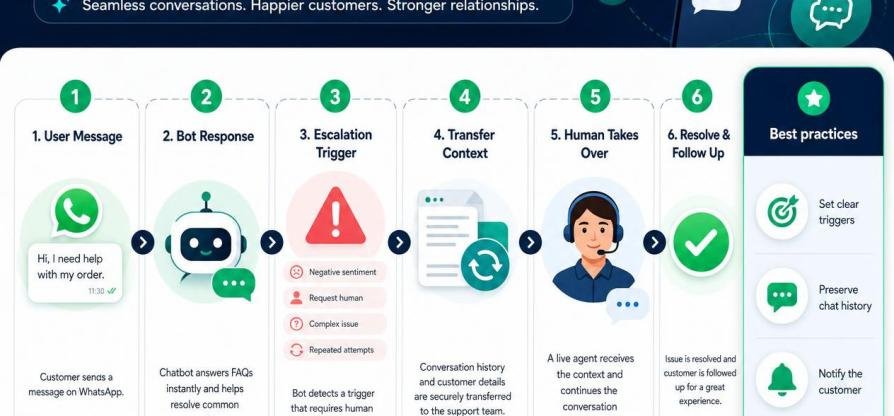
A chatbot that gets stuck in an infinite loop or speaks over a live support agent is one of the fastest ways to destroy customer trust. While automated bots handle initial lead qualification and FAQs, high-intent buyers and complex support issues eventually require human intervention.
A successful WhatsApp chatbot human handoff requires three distinct technical layers: automated triggers, a structured context payload for the agent, and an immediate bot-pause mechanism.
[ User Query ] ──► [ Intent / Sentiment Engine ] ──► Trigger Handoff?
                                                         │
                                    ┌────────────────────┴────────────────────┐
                                    ▼                                         ▼
                             [ NO: Continue Bot ]                  [ YES: Execute Handoff ]
                                                                              │
                                                                 1. Send Context Pack to Agent
                                                                 2. Activate Bot Pause (Suppress Auto-Replies)
                                                                 3. Route to Shared Team Inbox (ovowpp.com)
1. Triggering the Handoff: 4 Core Conditions
Your chatbot must know exactly when to step back. Relying on a single trigger leads to either premature handoffs that overwhelm agents or trapped customers who drop off in frustration.
1. Explicit Escalation Intent
Detect explicit intent keywords or structured button clicks.
Keywords:
human,agent,representative,speak to a real person,support team.Interactive UI: Always provide a persistent interactive button option in long flows:
[ 👤 Speak with an Agent ].
2. Fallback Threshold Exceeded
Track consecutive unrecognized responses. If the NLU (Natural Language Understanding) confidence score drops below 0.65 twice in a row, trigger an automatic escalation:
Attempt 1: Rephrase question or show quick replies.
Attempt 2: "I'm having trouble understanding your request. Let me connect you with a specialist who can help right away."
3. High Friction & Negative Sentiment
Incorporate real-time sentiment scoring on incoming inbound text. If sentiment drops into severe negative thresholds (e.g., detecting keywords like unacceptable, refund immediately, scam, or repeated exclamations !!!), bypass further automated nodes and elevate the priority level in your agent queue.
4. VIP Lead Tagging & High-Value Signals
When integrating WhatsApp with a CRM platform like ovowpp.com, incoming phone numbers are queried against existing lead records. If the contact has a high lead score or custom tag (e.g., Deal Size > $5,000 or Tier 1 Account), the chatbot can qualify the user in 1–2 steps and transfer the session straight to an assigned account manager.
2. Constructing the Agent Context Pack
Transferring a chat without background context forces the customer to repeat themselves—defeating the purpose of messaging support.
When a handoff triggers, the automation engine should compile and post a Context Pack directly into the agent interface (such as the ovowpp.com Shared Inbox) before the agent types their first response.
{
  "event": "bot_handoff_triggered",
  "timestamp": "2026-10-03T18:45:00Z",
  "customer": {
    "wa_id": "15550192834",
    "name": "Alex Mercer",
    "crm_id": "CRM-88204",
    "lead_score": 85,
    "tags": ["Enterprise", "Inbound Lead"]
  },
  "handoff_reason": "High Lead Score + Explicit Request",
  "summary": {
    "intent": "Product Inquiry - Enterprise Licensing",
    "last_bot_node": "node_pricing_enterprise",
    "key_data_captured": {
      "company_size": "50-200 seats",
      "budget_confirmed": true,
      "timeline": "Immediate"
    }
  }
}
Essential Context Pack Components
Chat Summary: A 2-line AI-generated or structured summary of what the user asked and what information was collected.
Current Lead Profile: Custom fields pulled from ovowpp.com (company name, pipeline status, order history).
Trigger Source: Clear indicator showing why the handoff occurred (e.g., Sentiment Flag, Manual Escalation, VIP Route).
3. The Bot-Pause Mechanism: Preventing Message Collisions
The most common failure in custom WhatsApp setups is the "ghost bot"—where an agent replies in the inbox, but the automated workflow keeps firing on subsequent user messages.
          WITHOUT BOT-PAUSE                           WITH BOT-PAUSE (ovowpp.com)

Customer: "Can I get a custom quote?"      Customer: "Can I get a custom quote?"
  │                                          │
  ├─► Bot: "Here is our standard pricing."   ├─► Handoff Triggered -> Bot State: PAUSED
  │                                          │
Agent:    "Hi, I can customize that!"      Agent:    "Hi, I can customize that!"
  │                                          │
Customer: "Great, we have 100 users."      Customer: "Great, we have 100 users."
  │                                          │
  ├─► Bot: "Did not understand option."      ├─► Agent handles smoothly (Bot silent)
  └─► Agent: "Let me check for 100..."
Technical Requirements for Bot-Pause
State Management: Set the contact's state variable
is_bot_activetofalseimmediately upon escalation.Webhook Filtering: Ensure incoming webhook events evaluate
is_bot_active === truebefore running through decision nodes.Auto-Resume Timer: Implement an idle fallback. If the agent does not respond or resolve the ticket within a set timeframe (e.g., 30 minutes), the conversation can either route to another queue or reactivate automated away-messages.
Platforms built natively for WhatsApp messaging—like ovowpp.com—handle state toggling automatically when an agent claims a thread from the shared inbox.
4. Setting Up WhatsApp Handoff in ovowpp.com
Using ovowpp.com, you can configure compliant handoff workflows without custom backend code.
| Step | Configuration Phase | Key Action in ovowpp.com |
| 1 | Define Triggers | Set trigger nodes for exact intent match (agent), low confidence (< 65%), or sentiment drops. |
| 2 | Apply Bot-Pause State | Add the standard block: Action -> Suspend Automation for Contact. |
| 3 | Compile Context Pack | Map collected variables ({company_size}, {lead_score}) to internal inbox notes. |
| 4 | Inbox Assignment | Assign ticket to a team queue (e.g., Sales Tier 1) using round-robin routing. |
| 5 | Resolution & Unpause | When the agent clicks "Mark as Resolved", is_bot_active resets to true for future chats. |
Best Practices for Handoff UX
Set Expectations Immediately: Always notify the user when a handoff occurs: "I've connected you with our Sales team. An agent typically responds within 2 minutes."
Respect Business Hours: If a handoff triggers outside working hours, use an automated pre-approved template message to set expectation response times or offer asynchronous booking links.
Maintain the 24-Hour Session Window: Human handoff must take place within Meta's 24-hour customer service window triggered by the user's message. If an agent replies after 24 hours, they must send a pre-approved Meta Template Message.
Share this Blog
More Blogs

Secure Your Cloud-Based Applications in 2026: The Essential Guide to SaaS Penetration Testing
Secure Your Cloud-Based Applications in 2026: The Essential Guide to SaaS Penetration TestingAs Soft...
- 05 Oct, 2026

Why Every Business Needs a WhatsApp Campaign Manager
Why Every Business Needs a WhatsApp Campaign ManagerIn today’s fast-paced digital marketplace, winni...
- 05 Oct, 2026

5 Powerful Ways to Automate Your Marketing with OvoWpp
5 Powerful Ways to Automate Your Marketing with OvoWppTraditional digital channels are facing unprec...
- 05 Oct, 2026

How WhatsApp CRM Tools Can Skyrocket Your Customer Engagement
How WhatsApp CRM Tools Can Skyrocket Your Customer EngagementIn an era where cold emails sit unopene...
- 05 Oct, 2026
Website Form to WhatsApp Nurture Sequence (2026 Guide)
Website Form to WhatsApp Nurture Sequence (2026 Guide)Email opt-ins are suffering from declining ope...
- 04 Oct, 2026
WhatsApp AI Agents: What’s Allowed After Meta’s 2026 Ban
WhatsApp AI Agents: What’s Allowed After Meta’s 2026 BanMeta's updated WhatsApp Business Solution Te...
- 04 Oct, 2026

5 Smart Ways to Automate WhatsApp Marketing Without Sounding Spammy
5 Smart Ways to Automate WhatsApp Marketing Without Sounding Spammy Stop alienating your aud...
- 08 Aug, 2026
Launch a WhatsApp SaaS Business with a Platform Built for Growth
Launch a WhatsApp SaaS Business with a Platform Built for Growth Discover...
- 08 Aug, 2026
WhatsApp for E-commerce: How to Recover Abandoned Carts and Increase Sales
WhatsApp for E-commerce: How to Recover Abandoned Carts and Increase Sales...
- 08 Aug, 2026
Unified WhatsApp Inbox: The Feature That Fixes Team Chaos
Unified WhatsApp Inbox: The Feature That Fixes Team Chaos Stop losing context...
- 08 Aug, 2026
Why Digital Agencies Need WhatsApp Automation to Scale Client Results
Why Digital Agencies Need WhatsApp Automation to Scale Client Results Stop le...
- 08 Aug, 2026
Stop Losing Leads in WhatsApp Chats: The Complete WhatsApp CRM Solution for Sales Teams
The Ultimate Guide to Scaling WhatsApp Sales: Why Your Business Needs a System, Not Just a Phone...
- 08 Aug, 2026

Top Benefits of Using OvoWpp for Agencies and Startups
Top Benefits of Using OvoWpp for Agencies and StartupsIn today’s hyper-competitive market, agencies...
- 01 Jun, 2025

From Contact to Customer, The WhatsApp Sales Funnel Explained
From Contact to Customer, The WhatsApp Sales Funnel ExplainedWhatsApp is no longer just a messagin...
- 01 Jun, 2025

Boost Conversions with WhatsApp Short Links and Smart Widgets
Boost Conversions with WhatsApp Short Links and Smart WidgetsIn the competitive world of digital ma...
- 08 Feb, 2025

WhatsApp Business API vs WhatsApp Business App: Which Does Your Marketing Team Need?
WhatsApp Business API vs WhatsApp Business App: Which Does Your Marketing Team Need?Marketing teams...
- 08 Feb, 2025

How to Build a WhatsApp Chatbot for Lead Generation (No Code)
How to Build a WhatsApp Chatbot for Lead Generation (No Code)Leads who click an ad, scan a QR code,...
- 06 Feb, 2025

Best WhatsApp CRM for Small Business: How to Choose (and What Actually Matters)
Best WhatsApp CRM for Small Business: How to Choose (and What Actually Matters)If you run a small bu...
- 06 Feb, 2025